


How to Set Up a Roblox Prospecting Macro: A Complete Guide
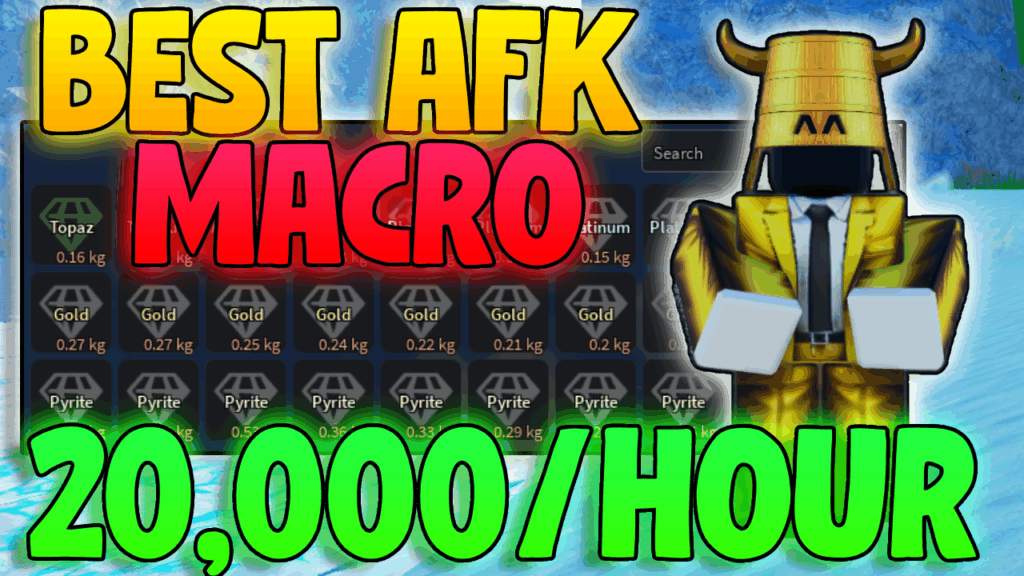
Setting up a macro in Roblox for the game Prospecting can significantly improve your gameplay by automating repetitive tasks like digging and panning. This guide will walk you through every step to configure an AutoHotkey macro, a powerful tool for scripting and automating gameplay loops. We’ll cover everything from installing the macro to adjusting key settings in Roblox to ensure the macro works seamlessly.
Getting Started with AutoHotkey for Roblox Prospecting
AutoHotkey is a free scripting language designed for Windows that allows you to create custom macros to automate keystrokes and actions. It’s ideal for automating mining and walking sequences in Roblox Prospecting.

Download and Install AutoHotkey Pro
- Download AutoHotkey from the official website: https://www.autohotkey.com/
- Run the installer and choose Express Installation.
- Once installed, AutoHotkey is ready to run
.ahkscripts for the Prospecting macro.
Download the Prospecting Macro File
Download the macro file here:
➡ Moris Prospecting Macro v1.4
(Credit To Moris)
This script automates common Prospecting actions, including digging, walking, and panning. It also includes customizable features like auto-sell, adjustable timing, and anti-AFK support.
For more about licensing, read: https://github.com/m0r1s/moris-prospecting-macro/blob/main/CUSTOMLICENSE.md
Configuring Roblox and Prospecting for Macro Compatibility
Game Resolution Settings
- Set your Roblox resolution to 100% to ensure the macro operates accurately.
- Go to Roblox Settings and change Graphics Mode to Manual.
- Do not use full-screen mode. Keep the game in windowed mode so the macro can properly detect and control your screen.
Disable Windows Notifications
- Open Windows Settings by pressing Win + I.
- Navigate to System > Notifications & actions.
- Turn off notifications to avoid interruptions while the macro is running.
Set Navigation Key Bindings
- Make sure your Prospecting controls match the macro script.
- Common keys include E for dig, W for forward, and mouse buttons for panning.
- Adjust these as needed to match your script setup.
Features and Requirements for the Roblox Prospecting Macro
Using this macro unlocks full AFK mining capabilities with intelligent automation features. Below is a detailed breakdown.
Features
- Full Automated Farming:
Automatically performs dig-move-pan sequences to keep gameplay running smoothly without manual actions. - Auto-Sell System:
Automatically sells items after a user-defined number of cycles, improving inventory management. - Cycle Tracking with GUI Display:
Includes a visible cycle counter that resets on script reload, letting you track your farming progress. - Debug Mode:
Optional on-screen tooltips to help debug and understand macro behavior in real-time. - Settings Persistence:
Automatically saves your macro preferences and reloads them when the script is restarted. - Window Move & Resize:
Automatically resizes and positions the Roblox window for accurate macro performance. - Terrain Detection:
Automatically detects whether your character is walking on land or in water and adjusts movement accordingly. - Adjustable Timing:
Lets you fine-tune the walk duration and dig delay to perfectly match Prospecting’s in-game timing.
What You Need
- Windows PC
- AutoHotkey v2.0 (Download from https://www.autohotkey.com/)
- Prospecting Macro
.ahkfile - Roblox is installed and running
Controls
| Key | What It Does |
|---|---|
| F1 | Start the macro |
| F2 | Reload the macro |
Getting Started
- Open Roblox and join the Prospecting game.
- Run the macro script by double-clicking the
.ahkfile. - Press F1 to start the macro.
- The script will automatically resize your Roblox window and begin executing dig, move, and pan sequences.
Configuration
Settings are automatically saved to a file called settings.ini. You can adjust:
- Debug tooltip preferences
- Auto-sell enabled/disabled state
- Auto-sell cycle threshold
- Adjustable Walk Time – how long (ms) to hold the walk key after terrain change
- Adjustable Dig Wait – how long to wait before starting the next dig
If Something Goes Wrong
If the macro isn’t working as expected:
- Make sure Roblox is open and the game window is visible.
- Check that AutoHotkey v2.0 is properly installed.
- Ensure your Windows display scaling is set to 100%.
- Roblox must be in windowed mode, not full-screen (the script tries to enforce this automatically).
- Adjust Walk Time or Dig Wait settings to better match game behavior.
- Enable debug tooltips to observe what the script is attempting to do.
FAQs
How do I download AutoHotkey for Prospecting?
Visit the official AutoHotkey site and download the latest v2.0 installer.
Why should I avoid full-screen mode?
Full-screen can interfere with cursor tracking. Use windowed mode with 100% scaling.
Does the macro prevent idle kicks?
Yes, the macro includes light anti-AFK measures to simulate minimal user input.
Can I modify timing for walking and digging?
Yes, both Walk Time and Dig Wait settings are customizable in the settings.ini file.
What should I do if the macro isn’t working?
Verify that you’re using AutoHotkey v2.0, Roblox is running, and scaling is set to 100%. Enable debug mode for troubleshooting.
Is using a macro allowed in Roblox?
Always review Roblox’s Terms of Service. While keyboard automation is often safe, excessive automation or unattended farming may be against the rules.
Conclusion
Setting up an AutoHotkey macro for Roblox Prospecting transforms repetitive mining into a fully automated and efficient process. This guide walks you through installing the macro, configuring game and system settings, and using helpful tools like auto-sell and cycle tracking. With adjustable timing, terrain detection, and persistent settings, the Prospecting macro offers a seamless AFK farming experience.